Calculate as you review
See how the base deduction translates into points for your inspected-unit sample. Your sample carries between the matrix and lessons.
 Landmark Inspection Services, LLC855-987-5400
MiniDCD · Illustrated NSPIRE Inspection Guide
Purchasing opens soon · Try the working demo today.
Illustrated inspection software that brings field experience, NSPIRE criteria and scoring tools together. Recognize conditions, calculate the displayed point deduction and understand the program outcome—all in one connected guide.
For housing owners, property managers, maintenance teams and inspectors.
Explore 25 paired lessons in the free working demo, with search, scoring tools and offline saving. No password or payment details needed.
Scoring matrix & deduction calculator
Enter the number of units inspected once. The scoring matrix and paired lessons use that same sample to show the applicable deduction for a counted finding.
Try the scoring tools →See how the base deduction translates into points for your inspected-unit sample. Your sample carries between the matrix and lessons.
Review Public Housing / covered Multifamily scoring alongside Voucher pass/fail outcomes and correction timeframes.
See when a finding is unscored, temporarily deferred or conditional. Keep repair requirements in view even when the displayed deduction is zero.
The calculator explains individual deductions. A final property score also depends on the applicable counting, threshold and program rules.
One condition. Two connected pages.
Illustrations help you recognize the condition. The paired lesson connects it to the criteria, inspection steps, correction information and applicable program outcome.
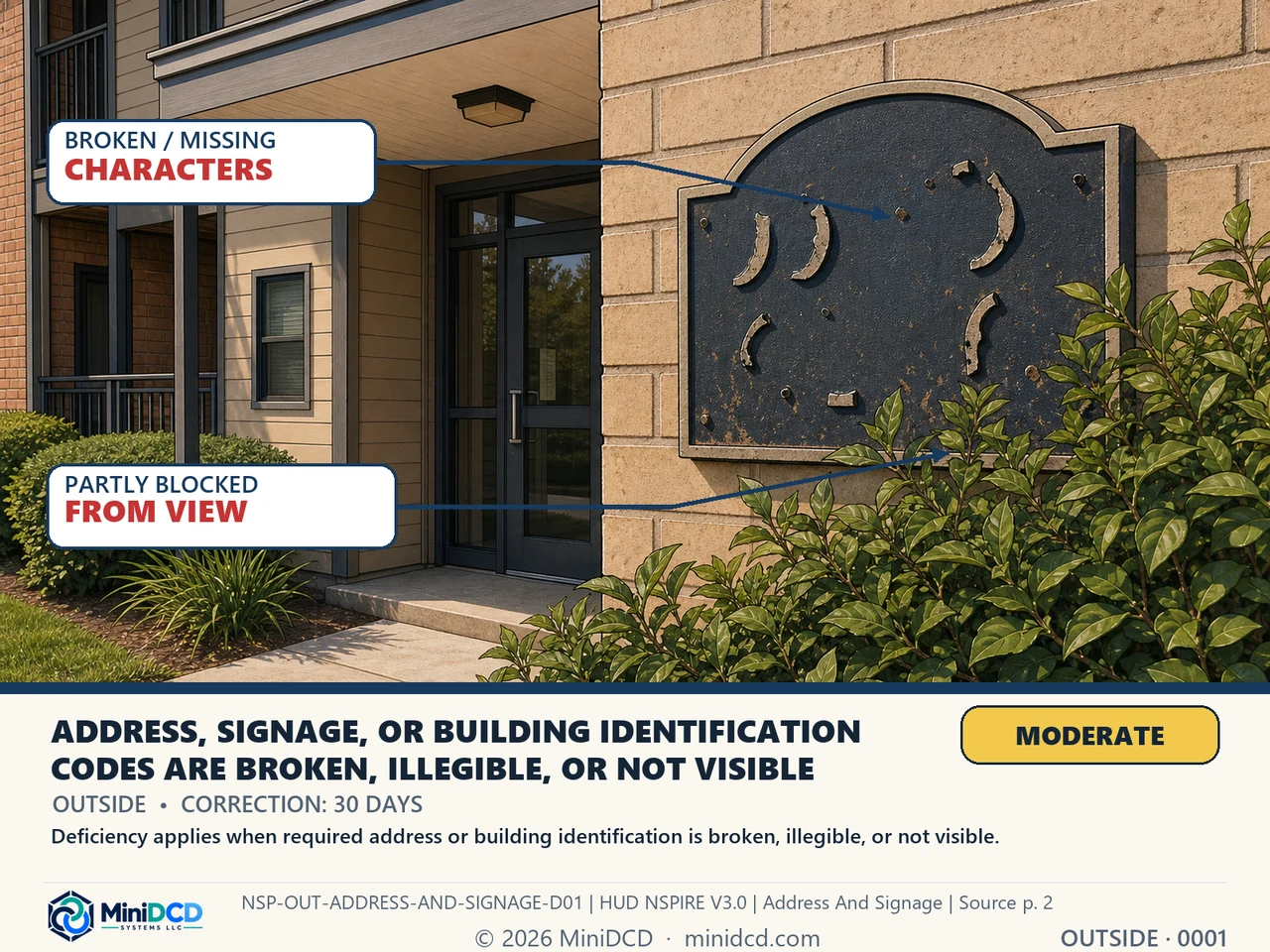
Start with a visual example and the relevant deficiency criteria.
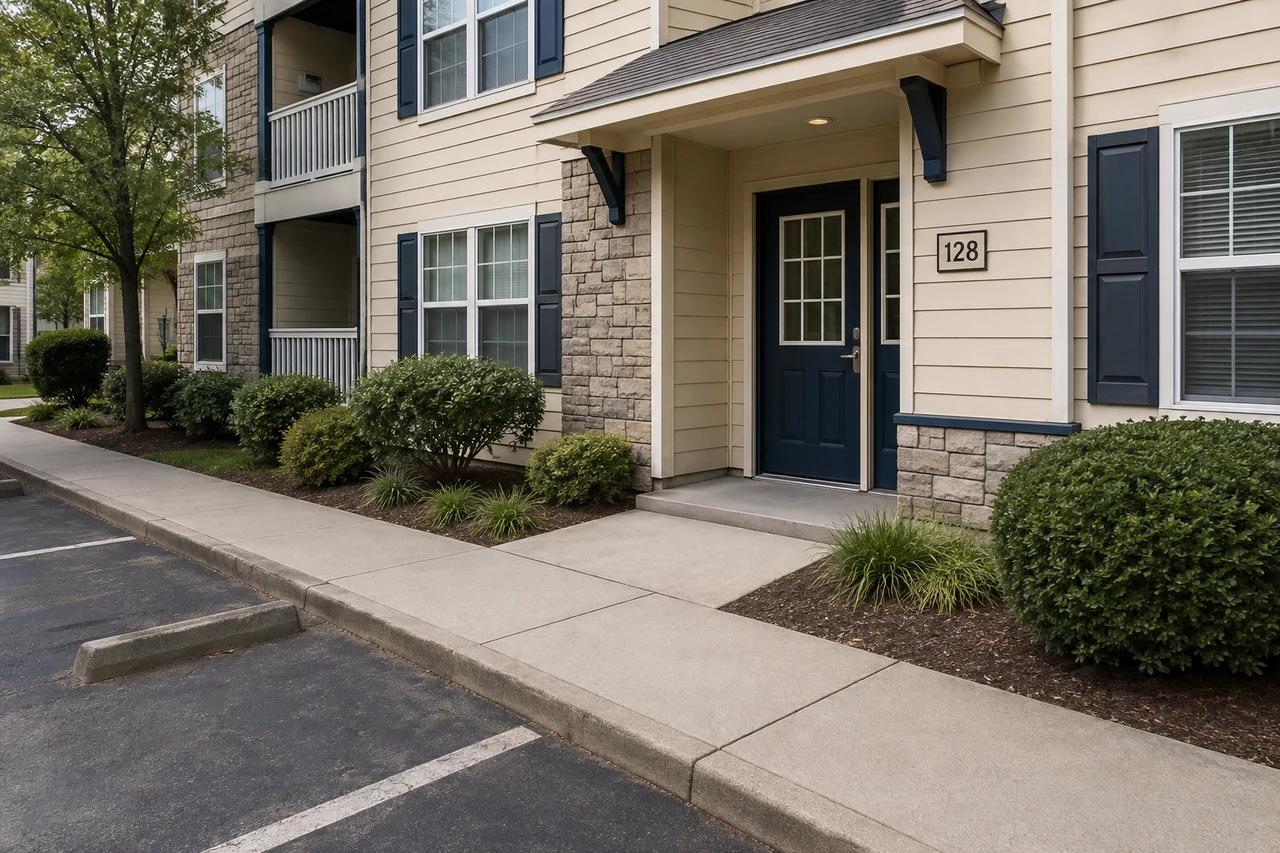
Review the inspection guidance and program distinctions in the full lesson.
Artwork from the demo’s Outside · Address and signage lesson. Select either image to open its page.
Search familiar terms and lesson text. Move from “outlet” or “door” to a specific condition and its connected inspection guidance.
Review health-and-safety information alongside Public Housing / covered Multifamily scoring and Voucher outcomes.
Use the inspected-unit calculator to explore the displayed deduction while keeping health-and-safety urgency in view.
Bring the visual example and inspection steps to onboarding, toolbox discussions and recurring staff training.
Keep criteria, additional guidance and source links connected so a useful illustration can lead to a closer review of the standard.
Use your computer, tablet or phone. Try the offline workflow now by saving the working demo before leaving coverage.
From the office to the property
For the people responsible for understanding, maintaining and inspecting housing, a shared lesson gives experience somewhere to travel.
Give people across your properties a shared reference for staff training, property walks and discussions about what needs attention.
Turn a vague description into a clearer conversation. Bring the condition, criteria and program information to the same discussion.
Use a paired lesson for a toolbox talk, onboard a new technician or refresh your crew’s understanding before a property walk.
Revisit similar conditions, review the inspection guidance and follow the source links when you need a closer look at the standard.
Asset managers and lenders can also use the examples to ask more specific questions about reported property conditions and follow-up.
Experience is the difference.
Developed by Landmark Inspection Services Master Inspectors with over 30 years of experience.
Where software intelligence meets field experience.
At your desk. On your property.
Desktop, laptop, tablet or phone. Explore the working demo in a current browser, including Chrome on Android or Safari on iPhone and iPad.
Start with scoring, search for a familiar condition, or open the first paired lesson.
Open the field demo →For phone or tablet use, add the demo to your Home Screen and open that icon while connected. Select “Save for field use” and wait for “Ready offline.” You can also save directly in your browser.
Check readability and try the saved demo without reception before relying on it. Use “Give feedback” to copy or share a note with the current page details.
When new lessons are added, return to the same demo link while connected and save again. Keep browser storage available. External HUD source links require a connection.
Purchase & licensing
A one-time purchase for the complete inspection guide. Choose the right coverage for the people using it.
Prices in USD, before applicable tax. Questions about individual or organization use? Call Landmark at 855-987-5400.
Be ready for launch
Leave your email and we’ll let you know when purchasing opens.
A few practical questions
The complete edition covers 410 paired lessons. The free demo gives you a working sample of 25 lessons / 50 slides, with a 410-topic title index. Only the included sample lessons open in the demo.
The demo is designed for current desktop and mobile browsers. On Android, look for your browser’s install or Add to Home Screen option. On iPhone or iPad, use Safari’s Share menu and Add to Home Screen. Browser and operating-system menus vary; try your own device before heading out.
Yes, after a successful save. Open the demo while connected, select “Save for field use” and wait for “Ready offline.” The included lessons, search and calculator are then available in that browser or installed copy. Clearing browser storage may remove the saved demo. External source links require internet access.
Yes. Share the demo link from this website so colleagues can get the latest edition. Keep the MiniDCD branding intact. The complete edition uses individual or team licenses; sharing the demo does not grant a paid license.
No. It helps explain the displayed deduction using the inspected-unit count. A final property score depends on the applicable program rules and inspection results. Use the guide alongside current official HUD standards and protocols; it is an independent reference and training product.
Choose individual or team access through Landmark. Review the edition, price and license terms before completing a one-time purchase. For help choosing the right coverage, call 855-987-5400.
In the demo, choose “Give feedback,” write your note and copy or share it with the person who sent you the demo. Your current page details are included. For product questions, contact Landmark.
Explore the software, then talk with Landmark about individual or organization use.